

Description
Download Desktop Screenshot Whiz – Fast, Free, Secure Screenshot Tool for Windows & Mac
Looking for a lightning-fast way to capture your screen with just one keystroke? Desktop Screenshot Whiz is the ideal tool for users who value speed, simplicity, and efficiency. Designed for both casual users and professionals, this lightweight software transforms the traditional screenshot process into a seamless experience. By simply pressing the Print Screen key, you instantly capture your current screen, which is then automatically loaded into the app for immediate editing and saving. Whether you're documenting software bugs, creating tutorials, or sharing quick updates, Desktop Screenshot Whiz streamlines the entire workflow. With support for multiple image formats, basic annotation tools, and a clean system tray interface, it’s a reliable choice for anyone who wants to reduce mouse clicks and maximize productivity. The app is free to download, secure, and regularly updated to ensure compatibility with the latest operating systems, including Windows and Mac. Best of all, it requires no complicated setup—just install, press Print Screen, and go.
Key Features of Desktop Screenshot Whiz
Desktop Screenshot Whiz stands out in a crowded market of screenshot tools thanks to its minimalist yet powerful feature set. One of the most compelling features is its one-key capture system. Unlike other tools that require you to open the app first, select a capture mode, and click a button, Desktop Screenshot Whiz activates instantly with a single press of the Print Screen key. This eliminates unnecessary steps and makes it perfect for users who need to capture screens on the fly—ideal for customer support, developers, or educators.
Once captured, the image opens directly in the app’s intuitive editor. You can crop the screenshot to a specific region, select the entire screen, or use the built-in selection tool to highlight only the relevant area. The app supports common image formats such as PNG, JPEG, BMP, and GIF, ensuring compatibility across platforms and applications. For quick sharing, you can save directly to your computer, copy to the clipboard, or even print immediately—no extra steps needed.
Basic editing tools are available, including the ability to add text annotations, draw shapes like rectangles, triangles, and circles, and apply filters to improve image quality. While the editing suite isn’t as extensive as those found in premium tools like Snagit or FastStone Capture, it’s more than sufficient for everyday tasks. The app also features a minimalist system tray icon, so it runs quietly in the background without distracting from your workflow. With automatic updates and a secure download process, Desktop Screenshot Whiz delivers a reliable, user-friendly experience that prioritizes speed and simplicity.
How to Install and Use Desktop Screenshot Whiz
Installing Desktop Screenshot Whiz is quick and straightforward. Begin by visiting the official download page and selecting the version that matches your operating system—either Windows or Mac. The installer is lightweight, typically under 10MB, and requires no admin rights for standard installations. Once downloaded, run the file and follow the on-screen prompts. The setup process takes less than a minute and automatically configures the Print Screen key to trigger the capture function.
After installation, the app runs silently in the system tray. To take a screenshot, simply press the Print Screen key while your desired screen is active. The captured image appears instantly in the Desktop Screenshot Whiz editor window. From here, you can choose to save the file, copy it to the clipboard, or print it directly. You can also use the on-screen tools to annotate, crop, or apply filters before saving.
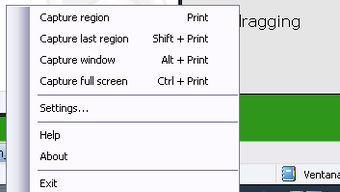
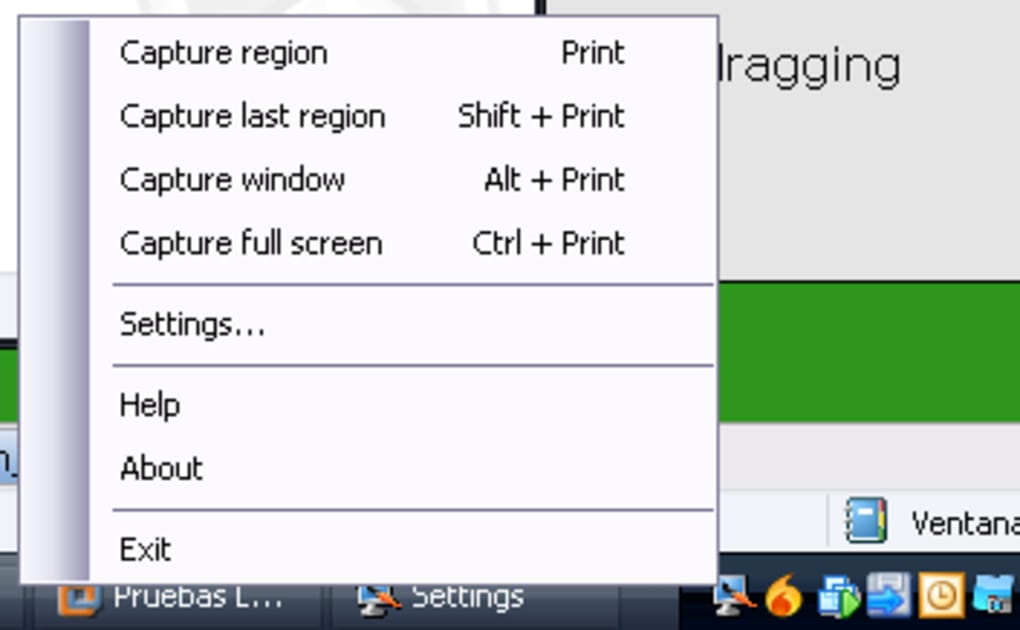
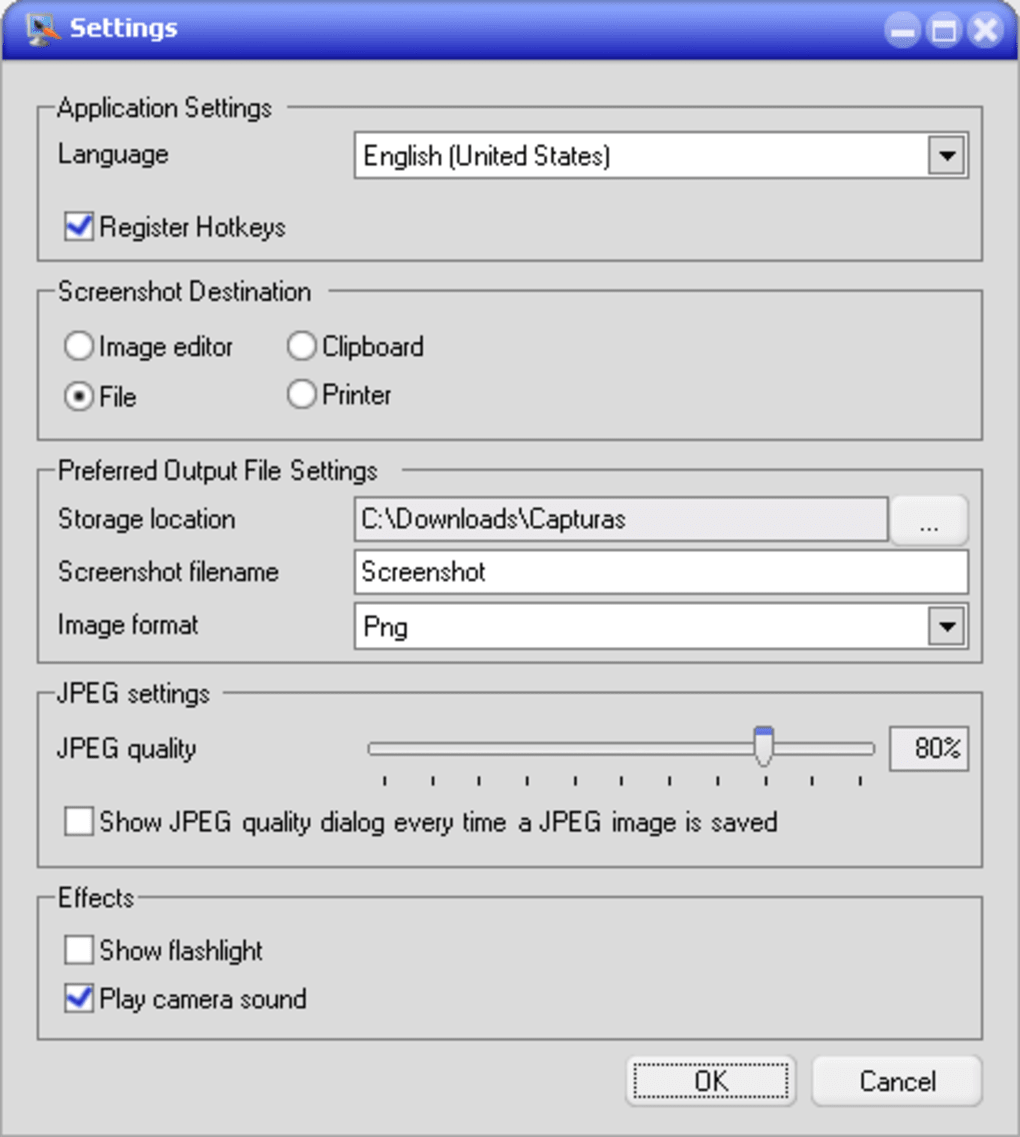
For advanced users, the app offers a settings panel accessible via the system tray icon. Here, you can customize the default save location, choose the preferred image format, adjust the auto-save delay, and even disable the startup prompt. The interface is clean and intuitive, making it easy to navigate even for first-time users. Whether you're a student taking notes, a remote worker sharing updates, or a content creator documenting workflows, Desktop Screenshot Whiz adapts to your needs with minimal friction.
Compatibility & System Requirements
Desktop Screenshot Whiz is designed to work seamlessly across a wide range of devices and operating systems. It is fully compatible with Windows 7, 8, 10, and 11, as well as macOS 10.14 (Mojave) and later. The app supports both Intel and Apple Silicon Macs, ensuring smooth performance regardless of your hardware. Its lightweight footprint means it uses minimal system resources, so you won’t notice any lag during use.
For users working in multi-monitor environments, the tool captures the active screen by default, but you can also configure it to capture all monitors simultaneously. It integrates well with popular applications such as Microsoft Office, web browsers, design tools, and video conferencing software. The app does not require an internet connection to function, making it ideal for offline use or in secure environments.
Security is a top priority. All downloads are verified and encrypted, and the software does not collect personal data or send telemetry without explicit consent. Regular updates ensure bug fixes, performance improvements, and compatibility with new OS versions. Whether you're using a laptop, desktop, or tablet (via remote access), Desktop Screenshot Whiz delivers consistent results across devices.
Pros and Cons of Desktop Screenshot Whiz
- Pros:
- One-key screenshot capture using the Print Screen key
- Lightweight and fast, with minimal system impact
- Supports multiple image formats (PNG, JPEG, BMP, GIF)
- Simple, clean interface with minimal distractions
- Auto-saves to system tray for quick access
- Free to download and use with no ads
- Secure and privacy-focused with no data collection
- Regular updates and excellent compatibility
- Cons:
- Limited editing tools—no spray paint, eraser, or advanced filters
- No built-in screen recording feature
- Basic annotation options compared to premium tools
- Only available for Windows and Mac (no Android or iOS version)
- Customization options are somewhat restricted
Frequently Asked Questions (FAQ)
-
Can I use Desktop Screenshot Whiz without pressing the Print Screen key?
Yes, while the Print Screen key is the default trigger, you can customize the shortcut in the app’s settings. You can assign a different key combination, such as Ctrl+Shift+S, for capturing screenshots.
-
Is Desktop Screenshot Whiz available for Android or iOS?
Currently, Desktop Screenshot Whiz is only available for Windows and Mac. There is no official app for Android or iOS, but you can use it on mobile devices via remote desktop or screen mirroring.
-
Can I edit my screenshots after capturing them?
Yes, the app includes basic editing tools such as cropping, adding text, drawing shapes, and applying filters. However, advanced features like erasing, transparency adjustments, or layering are not available.
-
Is Desktop Screenshot Whiz free to download and use?
Yes, Desktop Screenshot Whiz is completely free to download and use. There are no hidden fees, ads, or watermarks. The developers offer a free version with core functionality and plan to release a pro version in the future.
-
Does Desktop Screenshot Whiz support multiple monitors?
Yes, the app captures the active monitor by default. You can also configure it to capture all connected monitors at once through the settings menu.
Final Verdict: Is Desktop Screenshot Whiz Worth It?
For users who prioritize speed and simplicity in their screenshot workflow, Desktop Screenshot Whiz is an excellent choice. Its one-key capture system, lightweight design, and secure download make it a standout option in the free screenshot tool category. While the editing capabilities are limited compared to premium software, the app excels in its core function: capturing and saving screenshots with minimal effort.
If you're tired of navigating through multiple menus or waiting for apps to load, this tool delivers instant results. It’s perfect for quick documentation, remote collaboration, or sharing visual feedback. Although it lacks screen recording and advanced editing features, its reliability and ease of use more than compensate for these shortcomings.
Download Desktop Screenshot Whiz today and experience the fastest, most intuitive way to take screenshots on your Windows or Mac device. Whether you're a student, professional, or casual user, this free tool can save you time and boost your productivity.
Download now and make screenshot capture effortless!
Guides & Tutorials for Desktop Screenshot Whiz
How to install Desktop Screenshot Whiz
- Click the Preview / Download button above.
- Once redirected, accept the terms and click Install.
- Wait for the Desktop Screenshot Whiz download to finish on your device.
How to use Desktop Screenshot Whiz
This software is primarily used for its core features described above. Open the app after installation to explore its capabilities.
User Reviews for Desktop Screenshot Whiz 0
No reviews found





